

This article article contains a high-level guide regarding snapshots of your Amazon AWS Lightsail instance using the Lightsail console. It also shows some typical use cases when snapshots are handy.
For all our guides, be aware that these are AIRIX.NET internal and are not suitable for absolute beginners.
Prerequisite
You have already created an Amazon Lightsail instance and have it up and running.
Information how to create a Lightsail instance you want to refer to our article Create a Virtual Private Server on Amazon AWS Lightsail.
Snapshots
A snapshot of your Lightsail instance is a point-in-time backup of your instance.
The Snapshots tab of your instance is the starting point to create a snapshots, view previous snapshots, create a new instance from a snapshot, and copy snapshots to another AWS region.

Note: Amazon charges for the data stored in all snapshots. In December 2025 this charge is US $0.05 per GB per month (External link to Amazon's Lightsail price page: Amazon Lightsail Pricing).
Manual Snapshots
A manual snapshot can be created any time. Click on Create snapshot, give a snapshot name and click Create,
Manually created snapshots are stored until you choose to delete them. You will be billed the snapshot storega fee for snapshots stored on yourLightsail account.
Automatic Snapshots
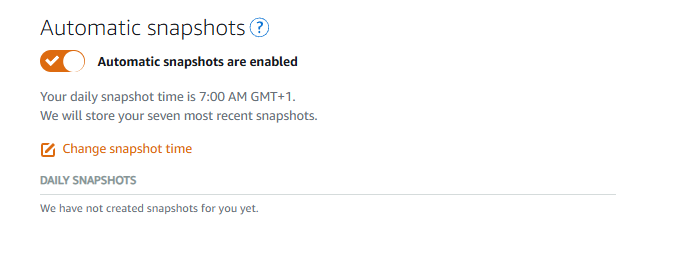
The Lightsail console also provides the option to create automatic snapshots daily for Linux instances. The latest seven automatic snapshots are stored before the oldest one is replaced by the latest snapshot.
Billing is for all snapshots stored in your Lightsail account.
You can define the time when automatic snapshots are created.
Use cases for Snapshots
Snapshot as Backup
A snapshot captures the complete instance with all programs and data in its state when the snapshot was created. In this sense it is comparable with a backup as you can go back to this exact state by creating a new instance based on the snapshot. It is a very easy way if you prefer to re-create your whole instance to a previous state. If you want to do changes to your system which could potentially impact your current system, it might be good idea to create a snapshot first, then do the changes and in case something goes wrong or you do not really like this change, you can go back as long as you are having the snapshot at hand. This is a very easy and straightforward exercise. In many cases it might be better to test your changes thoroughly before you bring them to your productive instance. See the approach described in next section Snapshot to create a new instance.
On the other hand, snapshots are not fully comparable to backups as you cannot easily restore single files from your instance. (Option would be, to create a new instance from the snapshot, copy over the version of a file you want to restore, and then delete the instance).
Snapshot to create a new instance
Snapshot are an easy means if you need a new instance based on your existing instance. In case you want to upgrade your current instance to a larger virtual private server, create a snapshot of your current instance, purchase a larger instance and have a new instance created based on the existing snapshot. This approach is very straightforward and easy to do. Note: You can only upgrade to larger instances. A downgrade to a smaller instance with snapshots is not possible!
The use case to create a new instance based on snapshot can also be handy if you want to install new programs or make configuration changes. Use a snapshot of your current productive system, create a new instance as an exact copy, make your changes and test them thoroughly. Only if you are satisfied with the results you want to to replicate them on your productive instance.
Snapshot to move your instance to a new AWS region
You can use snapshots to move your instance to a different AWS region. The approach is very similar to how you would upgrade your instance to a larger server (see section Snapshot to create a new instance): Create a snapshot of your current instance, purchase a new instance in the new AWS region you want to move to and have the new instance created based on the existing snapshot.
Related articles
Manage your Amazon Lightsail VPS: Networking and Static IP
Manage your Amazon Lightsail VPS: Stop, Start, Reboot, Delete Instances
