

This article article contains a high-level guide how to manage Networking in your Amazon AWS Lightsail instance using the Lightsail console.
For all our guides, be aware that these are AIRIX.NET internal and are not suitable for absolute beginners.
Prerequisite
You have already created an Amazon Lightsail instance and have it up and running.
Information how to create a Lightsail instance you want to refer to our article Create a Virtual Private Server on Amazon AWS Lightsail.
Manage the Instance's IP addresses
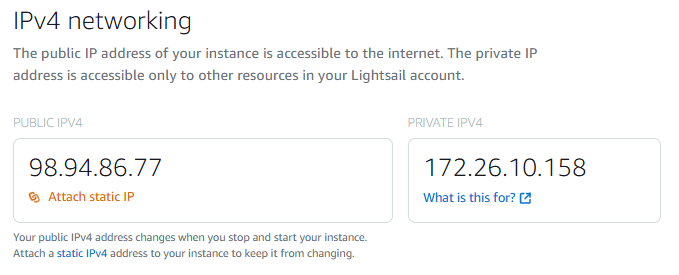
A newly created instance with dual-stack gets a public IPv6 plus two IPv4 addresses assigned automatically. One of the IPv4 addresses is a public IP address of your instance and is accessible to the internet. The private IP address is accessible only to other resources in your Lightsail account in the same AWS Region.
The public IPv4 address is initially a dynamic IP address, which means it changes when you stop and start your instance. Hence, you normally want to assign a static IP address which will remain constant.
IPv4 networking
There are two options to assign a static IPv4 address. First option: From your instance under the Networking tab you can just click on the link Attach static IP, provide a name for the new static IP and click on Create and attach.
Second option: Select Networking from the menu, click on Create Static IP, select the instance in section Attach to an instance enter a name and click the button Create.
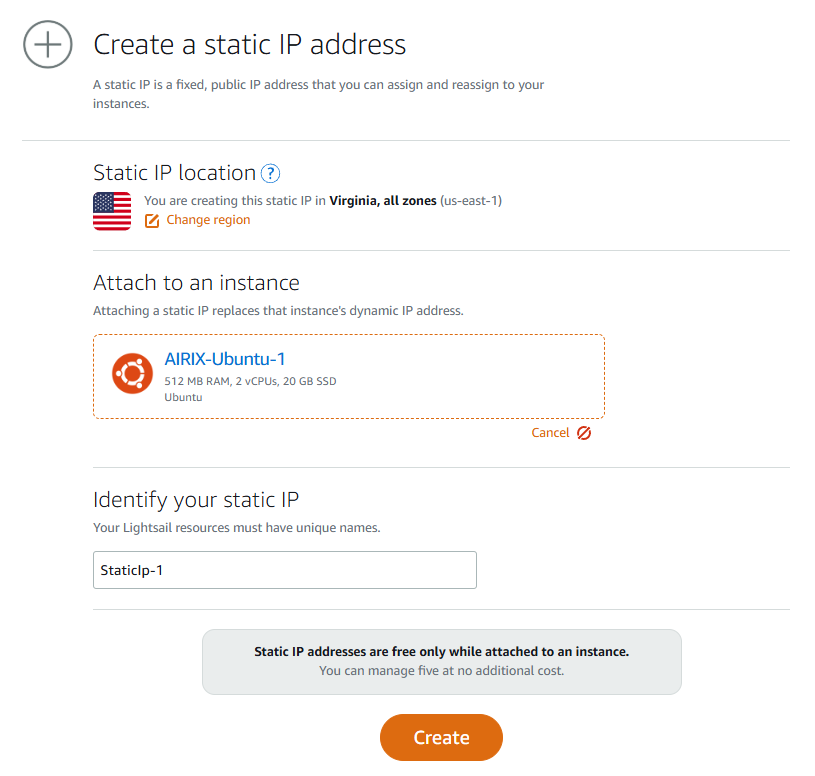
In either cases an IPv4 address is assigned from Amazon's address pool. The linked IP address is now a static address which means that the address does not change when the instance is stopped and restarted. This makes it more easy to manage the instances.
Important: As long as the static IPv4 address is attached to the instance, the fee is included in the subscription of the instance. Static IPv4 addresses are charged separately, if not attached to an instance.
Keep in mind: When you delete an instance, the static IPv4 address remains assigned to your account. This has the advantage that as soon as you create a new instance, you can attach the same IPv4 address you used before to the new instance. But for the time where the IPv4 address is not attached to any instance, it will be charged separately.
IPv6 networking
The IPv6 address handling is a bit different. As soon as the instance is created, a public IPv6 address gets assigned. Unfortunately it is not really static, but at least a sort of static as the instance is active active and IPv6 networking is enabled. This means the IPv6 address does not change when you stop and restart your instance.
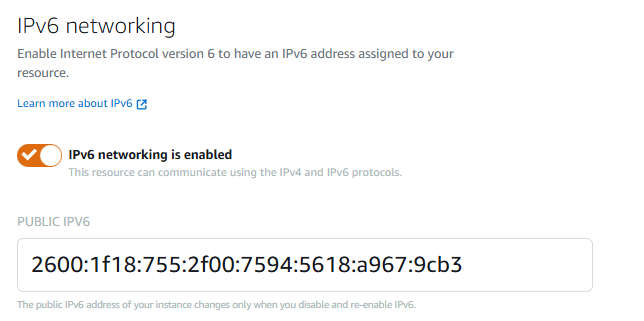
But as soon as you disable IPv6 or you delete the instance, you loose this specific IPv6 address. This behaviour of IPv6 addresses is not ideal from my perspective. In IPv4 you can create a static IPv4 address within Lightsail, and you can keep it static and available, you can detach it from your current instance, create a new instance and then attach it to your new instance. The behaviour with IPv6 addresses is a bit different, although it persists when you stop and start your instance, it is released when you delete your instance, or disable IPv6 for your instance.
And you cannot get the IPv6 address back after you perform either of those actions.
Manage the Instance's Firewall
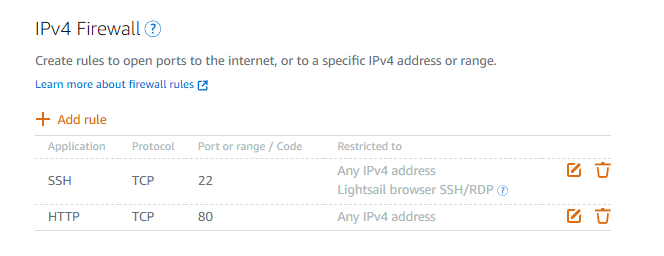
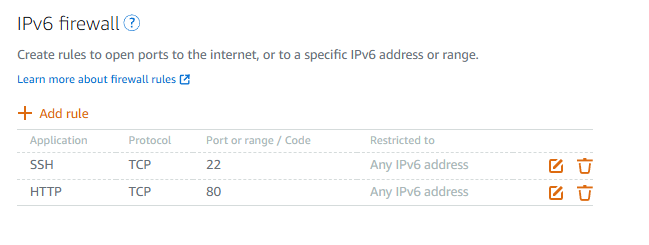
The IPv4 and IPv6 firewalls control the traffic allowed to connect to your instance through its public IP addresses at the protocol and port level. IPv4 and IPv6 firewalls can be maintained separately.
IPv4 Firewall
The IPv4 Firewall settings are maintained in section IPv4 Firewall of Networking tab of your instance. For more details, refer to the link on your instances Firewall section Learn more about firewall rules.
IPv6 Firewall
The IPv4 Firewall settings are maintained in section IPv4 Firewall of Networking tab of your instance. For more details, refer to the link on your instances Firewall section Learn more about firewall rules.
Attach a Domain Name
Now with having a static IP address defined, you probably want to attach a domain name as well. Refer to this article for more details: Attach a Domain Name to the Static IP Address
Related Articles
Create a Virtual Private Server on Amazon AWS Lightsail
Manage your Amazon Lightsail VPS: Snapshots
Manage your Amazon Lightsail VPS: Stop, Start, Reboot, Delete Instances
